
How to install Interview Boost AI
Step-by-step instructions for Windows, from downloading the official build to your first interview session.
Download and first launch
Download the app only from the official website and check the file's digital signature before running it.
-
01
Choose your download
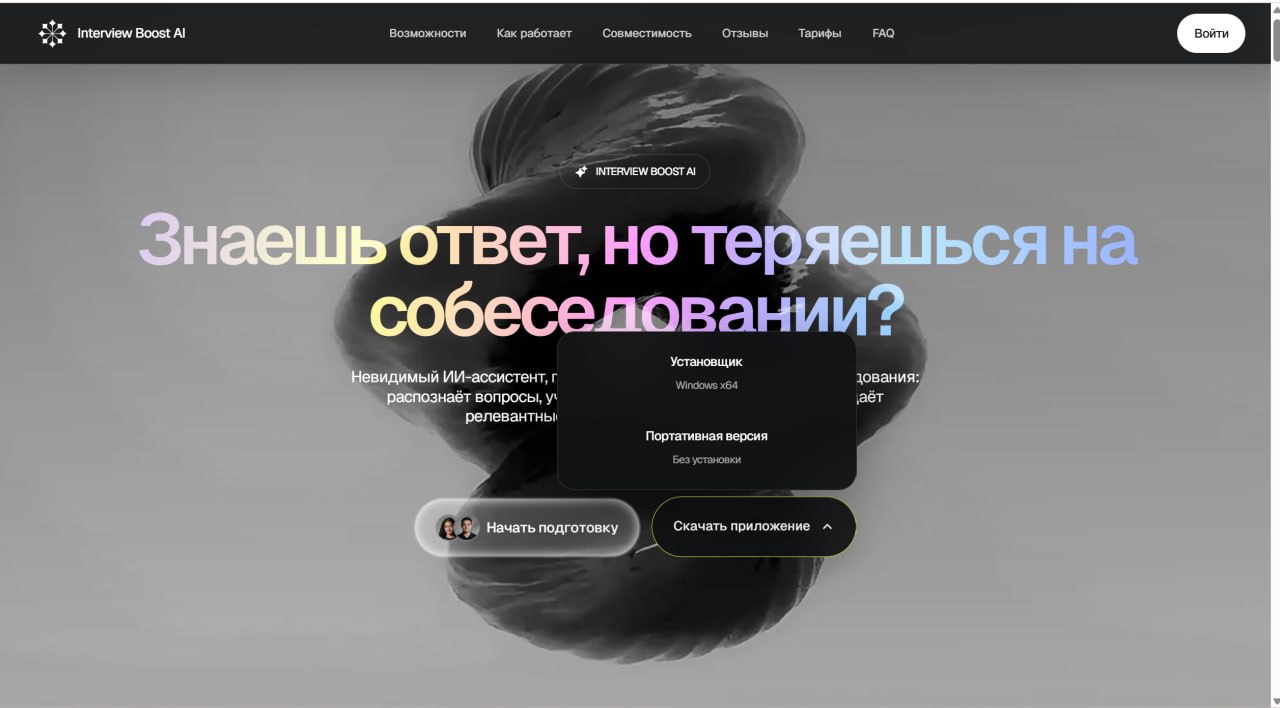
On the home page, select Download the app. Choose the Windows x64 installer or the portable ZIP archive.
 Open image
-
02
Install or extract the app
Installer: run the downloaded EXE and follow the setup wizard.
Portable: extract the entire ZIP into a separate folder and run
InterviewBoostAI.exe. Do not run the EXE directly from the archive or remove the foldersconfiganddocs. Open image
Your first interview session
After launch, log in to your existing account or register using your email.
-
01
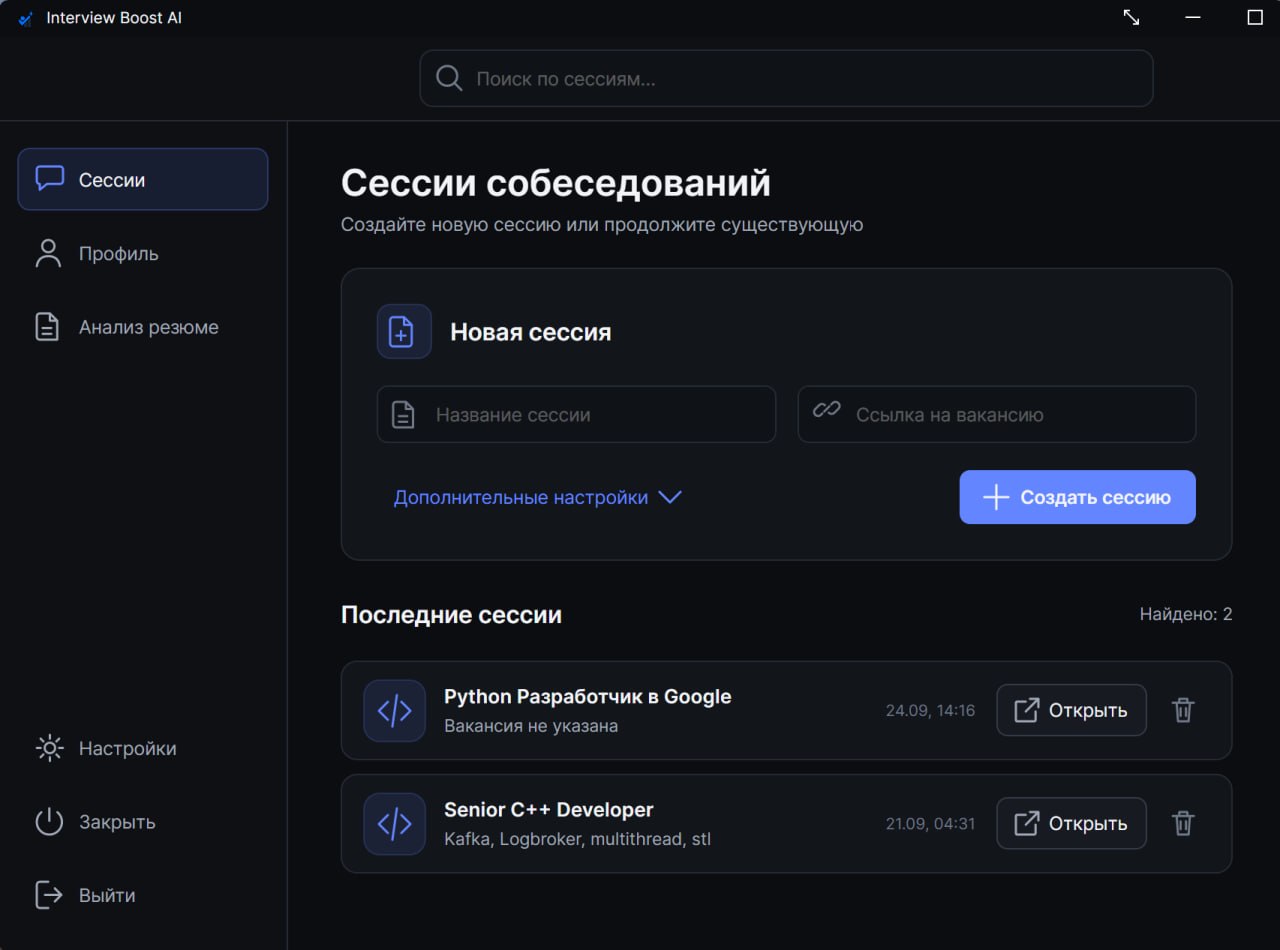
Create a session
Enter the interview name and optionally a job posting URL. Open previous sessions from the list below.
 Open image
-
02
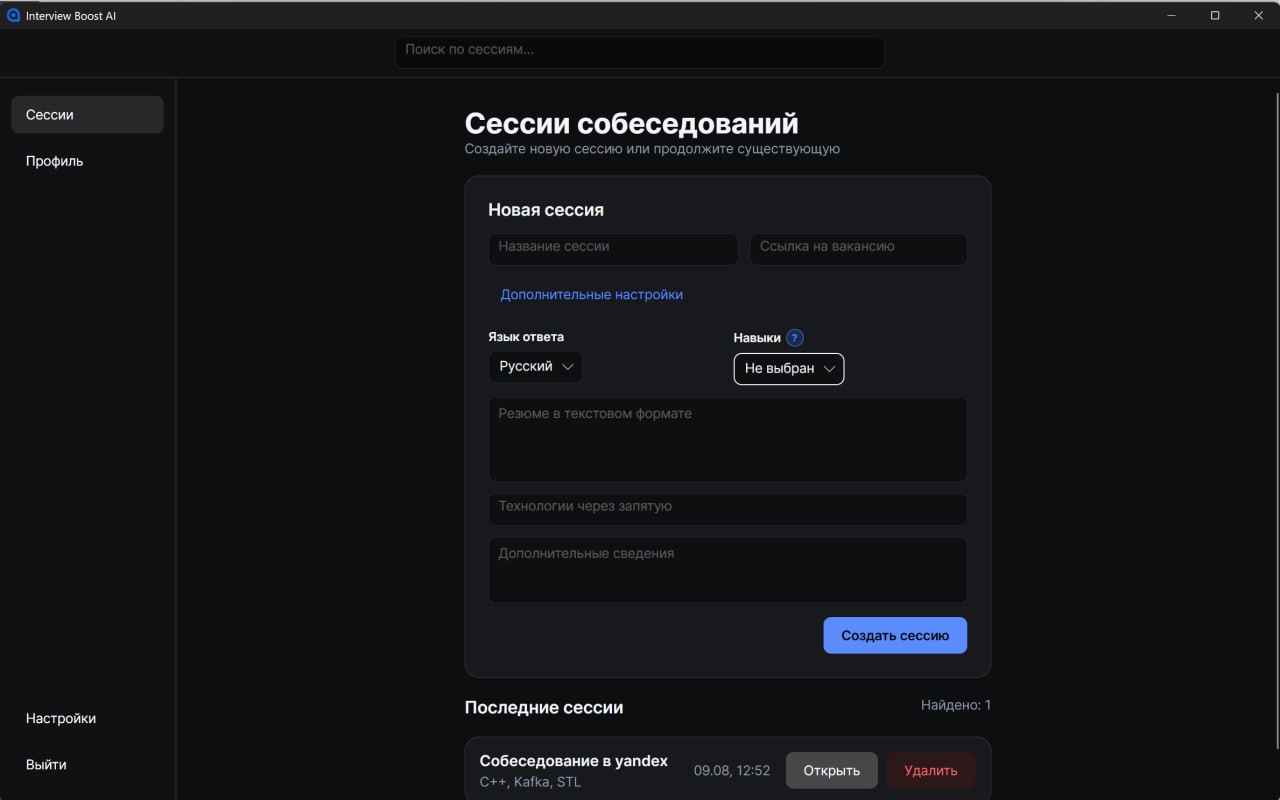
Add context
In advanced settings, choose an answer language and skills, then add your resume, technologies and job details. This helps the AI provide more relevant answers.
 Open image
-
03
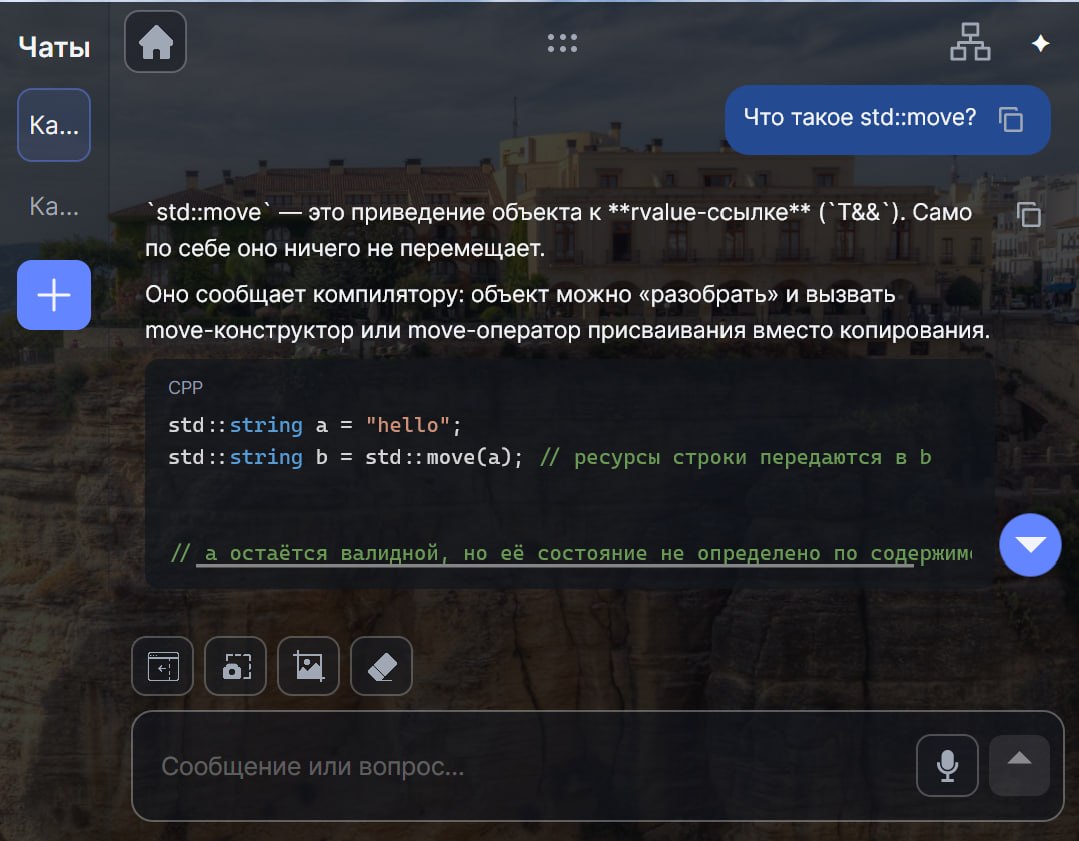
Open a chat and ask a question
Choose a model or Auto mode. Type a question or attach a screenshot. The answer appears in your current chat; you can create additional chats with their own context.
 Open image
-
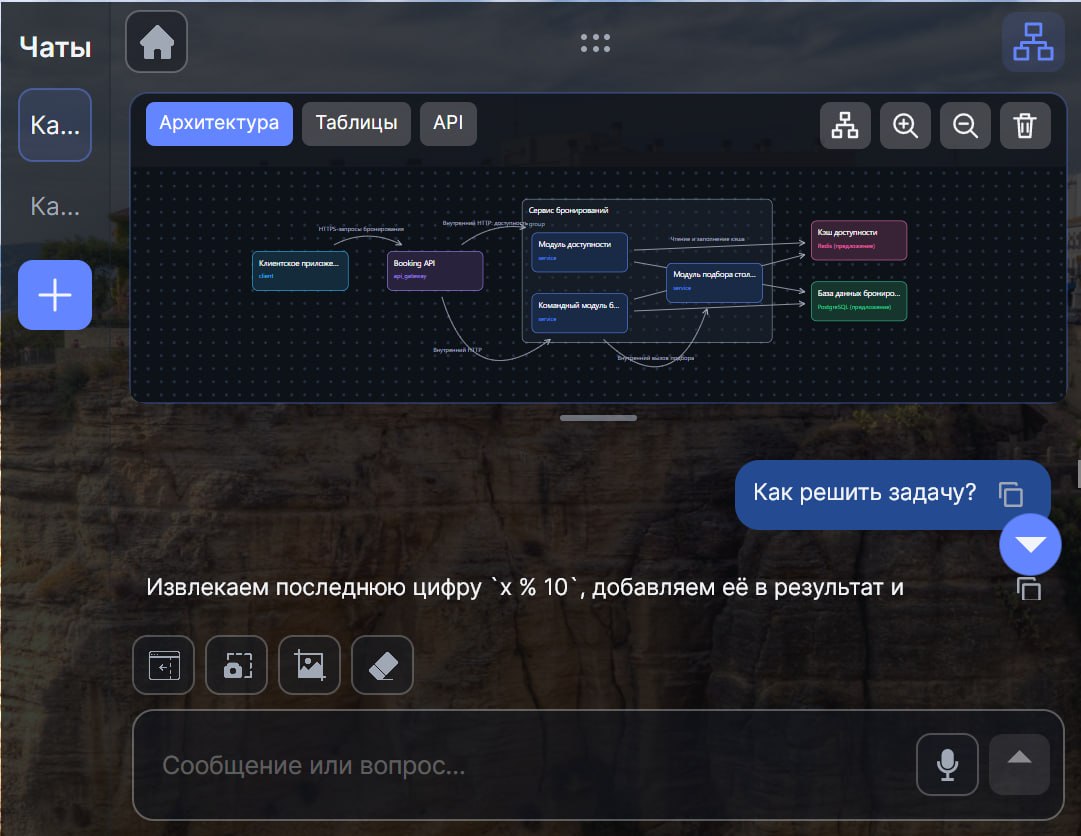
04
Switch to System Design
Open System Design using the diagram button at the top of the chat. Discuss architecture in the same chat and switch between Architecture, Tables and API tabs.
 Open image
Having trouble installing or launching?
Tell us your Windows version and at which step the warning appeared. Attach a screenshot so we can check the file source and help you resolve the issue safely.